Lesson 3 - Executing SQL Commands With Python

Lesson Overview
In this lesson, we'll move on from the user-friendly graphical interface of DB Browser and explore the more practical world of interacting with SQLite databases through Python scripts. Our focus will be on a database of American cars for sale. We'll cover:
- Why Python? Understanding the benefits of using Python with SQLite.
- Setting Up: Preparing your Python environment for database interaction.
- Basic Queries: Executing simple SQL queries from a Python script.
- Dynamic Queries: Taking user input to generate dynamic queries.
Why Python?
While tools like DB Browser offer a convenient way to explore and manipulate SQLite databases, most real-world applications don't involve direct user interaction with the database. Instead, databases are often accessed and managed through programming languages like Python.
Python, with its clear syntax and extensive libraries, provides an ideal environment for working with SQLite. It allows you to:
- Embed SQL queries within your Python code.
- Process and manipulate data retrieved from the database.
- Build applications that interact with SQLite databases seamlessly.
- Automate database tasks without manual intervention.
By combining the efficiency of SQLite with the versatility of Python, you can create powerful applications that manage data with ease and precision.
Setting Up Your Environment
Hopefully, you've already installed Python on your system. If not, a quick visit to the Python website will set you on the right path. Once you have Python installed, you should find that sqlite3 is included in the standard library.
Task: Check for SQLite
Check for the presence of the sqlite3 module by running the following code in a Python script:
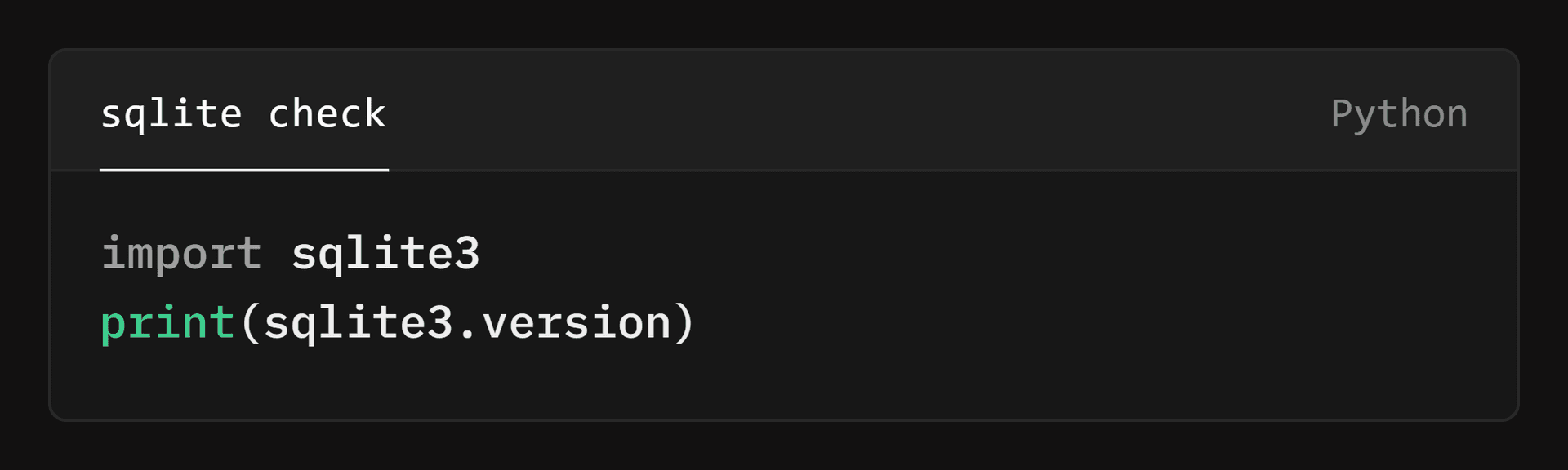
If the code runs without errors and prints the version of the sqlite3 module, you have the necessary libraries installed.
Executing Basic Queries
With our environment set up, we can now start executing SQL queries from our Python script. Let's begin with a simple example, retrieving all records from the "inventory" table in the "car_showroom.db" database found in Lesson 3 resource folder.
Task: Retrieve All Cars
- Download the "car_showroom.db" database from the Lesson 3 resource folder.
- Before proceeding further, open the database in DB Browser and explore the "inventory" table to understand its structure and contents; open the "Execute SQL" tab and run a few queries to get a feel for the data.
- Now for the fun part! Create a Python script and add the following code:
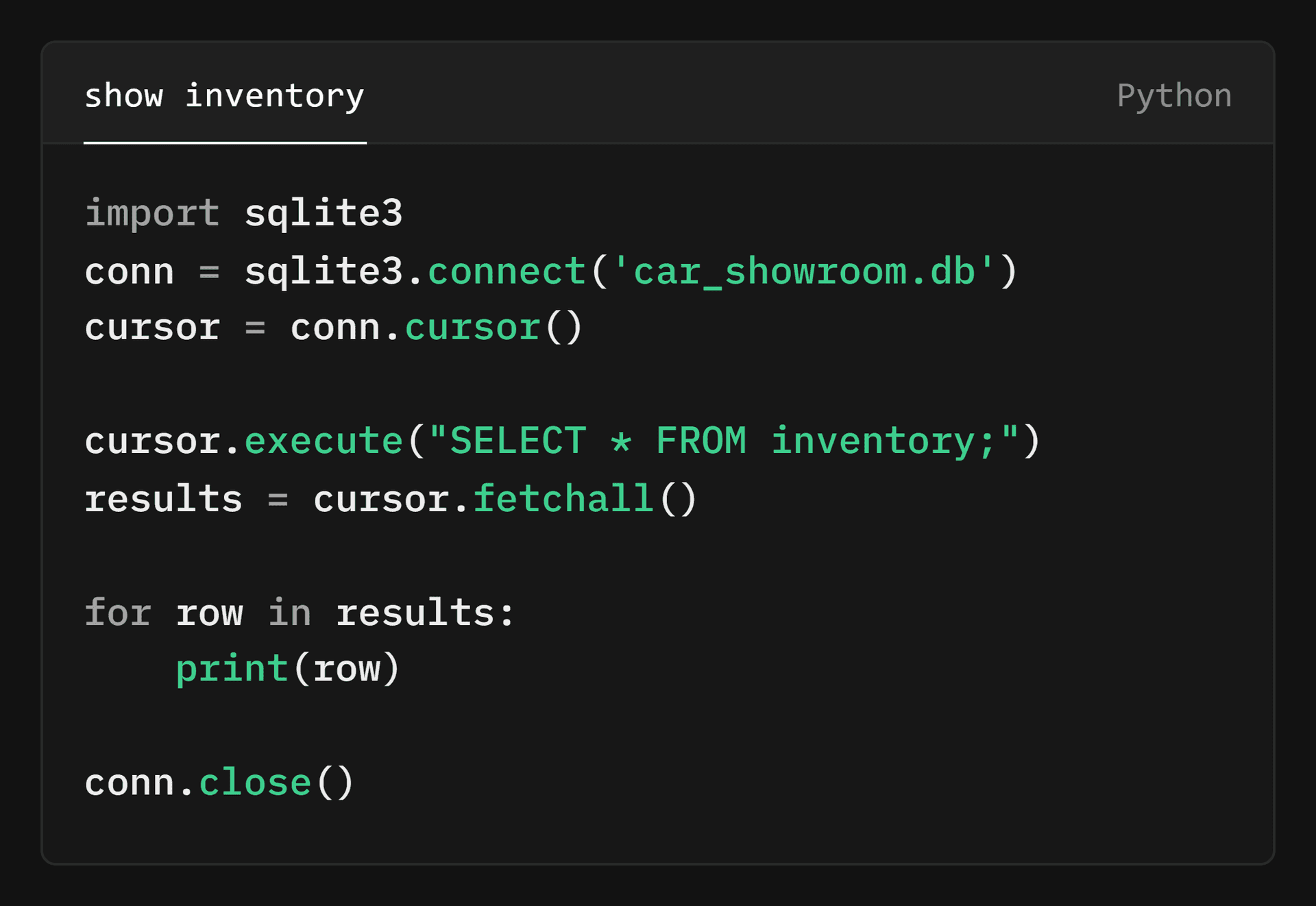
If this works, you should be presented with a very long list of cars and their details. Congratulations! You've successfully run a SQL query from a Python script.
⚠️Problem solving tip: if your IDE gives you an error like: sqlite3.OperationalError: no such table: inventory, make sure you are in the correct directory where the database is located. Alternatively, try running the script from IDLE.
Understanding the show_inventory.py script
Let's break down what's happening in this Python script step-by-step:
import sqlite3: This line imports thesqlite3library, which provides the necessary tools for interacting with SQLite databases from your Python code.conn = sqlite3.connect('car_showroom.db'): This establishes a connection to the "car_showroom.db" database. Think of it as opening the database file so you can work with it.cursor = conn.cursor(): This creates a cursor object. The cursor acts as an intermediary between your script and the database, allowing you to execute SQL commands and fetch results.cursor.execute("SELECT * FROM inventory;"): This line executes the SQL querySELECT * FROM inventory, which retrieves all records from the inventory table.results = cursor.fetchall(): This fetches all the results from the executed query and stores them in theresultsvariable. The results are typically returned as a list of tuples, where each tuple represents a row in the table.for row in results: print(row): This loop iterates through each row in theresultsand prints it to the console.conn.close(): This line closes the connection to the database, ensuring that any resources held by the connection are released.
In essence, this script demonstrates the fundamental steps of interacting with an SQLite database from a Python script: connecting to the database, creating a cursor, executing a query, fetching the results, and closing the connection.
Exploring basic queries
Now that you've successfully retrieved all cars from the inventory table, try experimenting with other SQL queries in your Python script. You only need to modify the SQL query inside cursor.execute() to retrieve specific data.
Task: Modify the Query to retrieve specific data
As in previous lessons try this on your own and peak at the answers if you really need to or to check. Remember, you only need to edit line 5.
- Retrieve cars of a specific make: Modify the query to retrieve all cars of a specific make (e.g., "Toyota").
cursor.execute("SELECT * FROM inventory WHERE make = 'Toyota'") - Retrieve make, model and model_year of cars available from a specific year: Modify the query to retrieve all cars of a specific year (e.g., 2019).
cursor.execute("SELECT make, model, model_year FROM inventory WHERE year = 2019") - Retrieve cars within a price range: Modify the query to retrieve all cars within a price range (e.g., $20,000 to $30,000).
cursor.execute("SELECT * FROM inventory WHERE price BETWEEN 20000 AND 30000") - Combine criteria to narrow the search: Modify the query to find Fords that are less than 3 years old, green and cost more than $10,000. Remember, you can use the
ANDkeyword to combine multiple conditions.cursor.execute("SELECT * FROM inventory WHERE make = 'Ford' AND model_year BETWEEN 2022 AND 2024 and colour = 'Green' and price > 10000")
You can see how easy it is to modify the SQL query to retrieve data using Python. This flexibility allows you to tailor your queries to specific requirements and extract the information you need from the database.
Why both double and single quotes?
In the examples above, you may have noticed that the SQL queries use both double quotes (") and single quotes (') to enclose strings. This is because the cursor.execute() function in Python requires the SQL query to be passed as a string.
Since the SQL query itself often contains single quotes (e.g., WHERE colour = 'Red'), we use double quotes to enclose the entire query string in Python. This avoids confusion and ensures that the query is passed correctly to the database.
If your SQL query doesn't contain any single quotes, you could use either single or double quotes to enclose the query string in Python. However, using double quotes consistently for SQL queries can improve readability and avoid potential errors.
Constructing Dynamic Queries
While executing hardcoded SQL queries can be useful, the true power of using Python with SQLite lies in the ability to construct dynamic queries based on user input or other variables. Let's create a script that takes user input for car colour and make, and then retrieves matching cars from the database.
Task: Create a Dynamic Query Script
Create a Python script that asks the user for a car colour and make, then retrieves matching cars from the database:
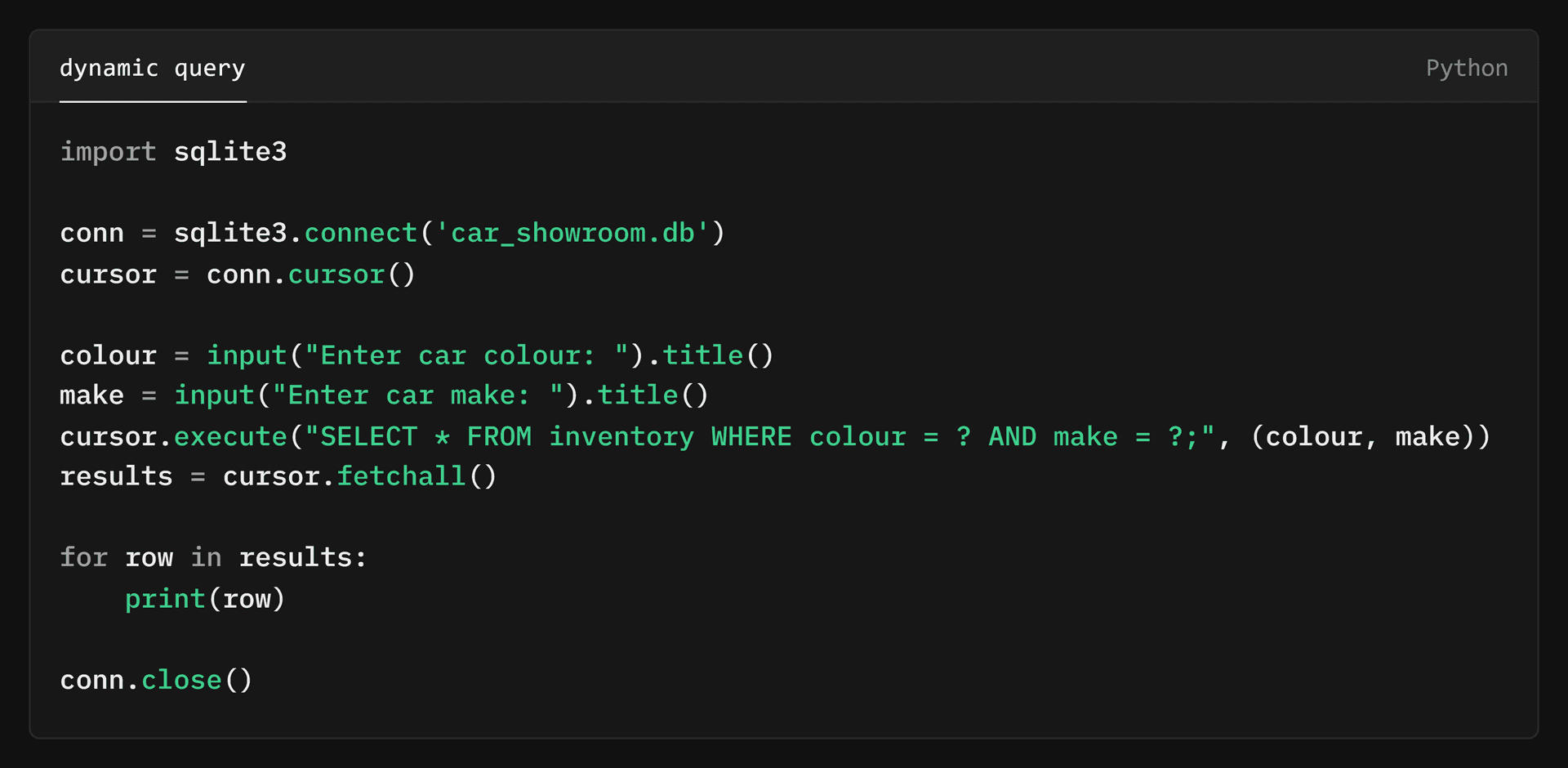
This demonstrates how you can create interactive database applications that respond to user input, making your programs much more flexible and useful.
Lesson Summary
In this lesson, we've explored how to interact with SQLite databases using Python. We've learned how to execute basic queries, modify them to retrieve specific data, and create dynamic queries based on user input. This knowledge forms the foundation for building database-driven applications with Python.