Lesson 1 - CRUD Operations in DB Browser

Lesson Overview
- Introduction to SQLite and DB Browser: We'll cover what SQLite is, why it's useful, and how DB Browser makes it easier to work with.
- Creating a Database and Tables: We'll learn how to create a new SQLite database and define the structure of your data with tables and columns.
- CRUD Operations: This is the core of our lesson! We'll dive deep into each operation:
- Creating records: Adding new data to your tables.
- Reading records: Retrieving data from your tables using different queries.
- Updating records: Modifying existing data in your tables.
- Deleting records: Removing data from your tables.
What is SQLite?
Picture a quiet, unassuming library, residing modestly within your computer. SQLite is a humble database system that allows you to organise your data with a sense of calm efficiency. It uses a language called SQL (Structured Query Language) to manage this data, but unlike those grand databases that require an imposing server and speak many dialects of SQL, SQLite is content in a single file with its own specific version of the language.
Why is SQLite useful?
Simplicity: It offers a refreshingly straightforward approach.
Portability: Carry it with you; it demands little.
Efficiency: It performs its tasks without fanfare or complaint.
What is DB Browser for SQLite?
DB Browser is a reserved tool that provides a subdued interface for managing your SQLite database. It allows you to tend to your data with quiet ease, creating databases, defining tables, and manipulating data, all without needing to write raw SQL commands.
Creating a Database and Tables
Imagine acquiring a new, empty bookcase for your quiet library. Before you can begin organising your collection, you must first prepare the shelves. In the world of SQLite, this translates to creating a database and defining its structure with tables.
Creating a Database
A database is like that bookcase – a container to hold and organise your information. In SQLite, this container is a single file, residing unobtrusively on your computer. To create this file, we'll use DB Browser for SQLite:
Task: Create Your First Database
- Open DB Browser for SQLite.
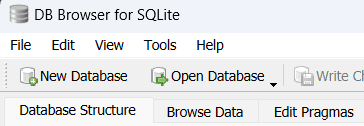
- Click on "New Database" in the toolbar.
- Choose a location to save the database file and give it a fitting name, such as "bookshelf.db".
- Click "Save".
You've now brought your new, empty bookcase into existence. It awaits the careful arrangement of your information.
Creating Tables
Within your bookcase, you'll want to organise your books into categories. Perhaps you'll have a shelf for fiction, another for non-fiction, and another for poetry. In SQLite, these categories are called tables.
A table is a structured collection of data, organised into rows and columns. Each row represents a single item (like a book), and each column represents a specific attribute of that item (like its title, author, or genre).
Let's create a table to store information about books:
Task: Create a 'books' Table
- In DB Browser, go to the "Create Table" tab.
- Enter "books" as the table name.
- Now, define the columns for your table:
- id: A unique identifier for each book (INTEGER data type, Primary Key, and check the "Autoincrement" box).
- title: The title of the book (TEXT data type).
- author: The author of the book (TEXT data type).
- genre: The genre of the book (TEXT data type).
- Click "OK" to create the table.
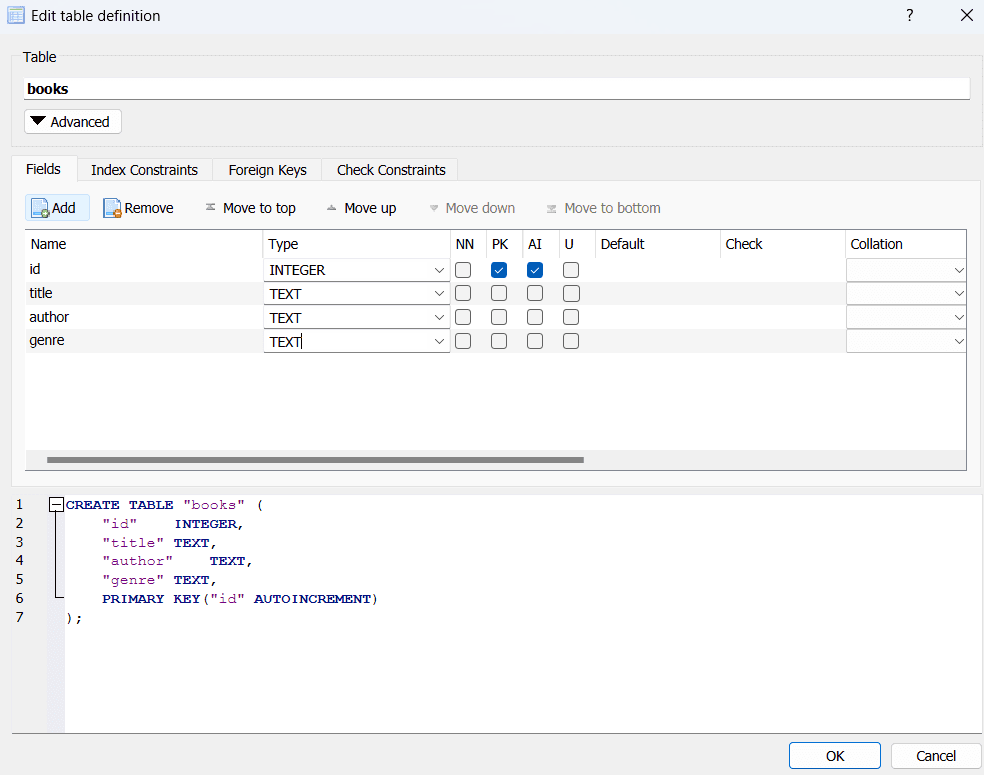
You've now created your first table, akin to adding a new shelf to your bookcase and labelling it "books". It's ready to receive the details of your literary collection.
CRUD Operations
Now that we've laid the groundwork, it's time to populate our newly created database. This involves the core of database interaction: CRUD operations.
What is CRUD?
CRUD is an acronym that stands for:
- Create: Adding new data to your tables.
- Read: Retrieving data from your tables.
- Update: Modifying existing data in your tables.
- Delete: Removing data from your tables.
These four operations are the fundamental building blocks for interacting with any database, and SQLite is no exception.
Creating Records
Imagine carefully placing books onto your newly built shelves. Each book represents a record, a single entry in your database table. To add a book to your "books" table, we'll use the "Browse Data" tab in DB Browser:
Task: Add a New Book Record
- Go to the "Browse Data" tab.
- Select the "books" table.
- Click the "New Record" button. This will create a blank row for you to fill in.
- Enter the book's information:
- You can skip the "id" field, as it's set to auto-increment.
- Enter the title, author, and genre of the book. For example:
- Title: The Thrilling Adventures of Lovelace and Babbage
- Author: Sydney Padua
- Genre: Graphic Novel

- Click "Write Changes" to save the new record.
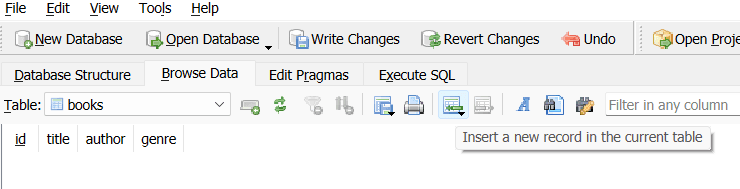
You've just added your first record to the database, akin to placing a carefully chosen book onto your shelf.

Solidify your understanding by adding ten more books to your "books" table using the straightforward interface of DB Browser. Select titles from your own collection or those you aspire to read, and observe how easily you can manage your data without writing any code. This modest practice will prepare you for further exploration of CRUD operations.
Task: Expand Your Library
Add 10 more books to the database. Alternatively, open the 'bookshelf.db' found in the resources folder if you want to cheat.
Reading Records
Having diligently populated your database, it's time to delve into the art of retrieval. In the hushed confines of our library analogy, this equates to selecting a book from its designated shelf and perusing its contents. Within DB Browser, this translates to viewing and filtering your data with quiet efficiency.
Viewing Data in DB Browser
DB Browser offers a straightforward way to view your data without the need for complex commands. To view the contents of your "books" table:
Task: View the 'books' Table
- Navigate to the "Browse Data" tab.
- Select the "books" table from the list.
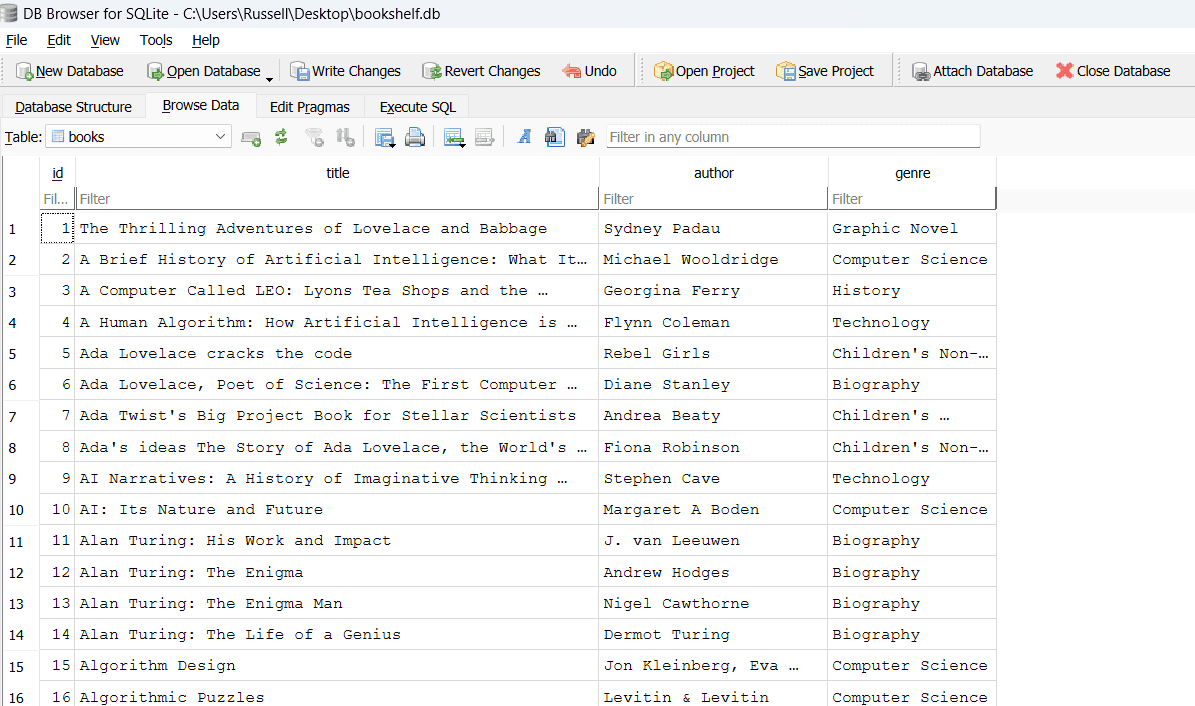
To see the same view as the above screenshot, load the 'bookshelf.db' from the lesson resource folder.
The table's contents will be displayed, revealing the fruits of your earlier labours. Each row represents a book, and each column displays a specific attribute. Observe the unassuming orderliness with which your data is presented.
Filtering Data in DB Browser
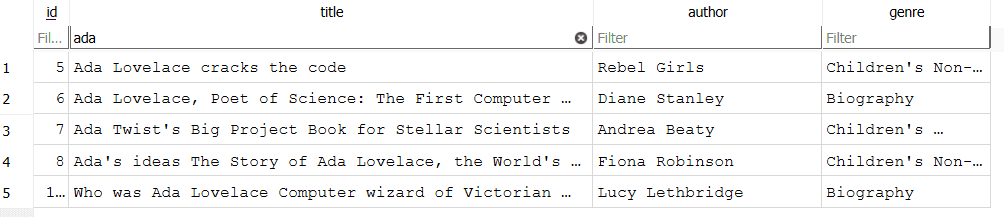
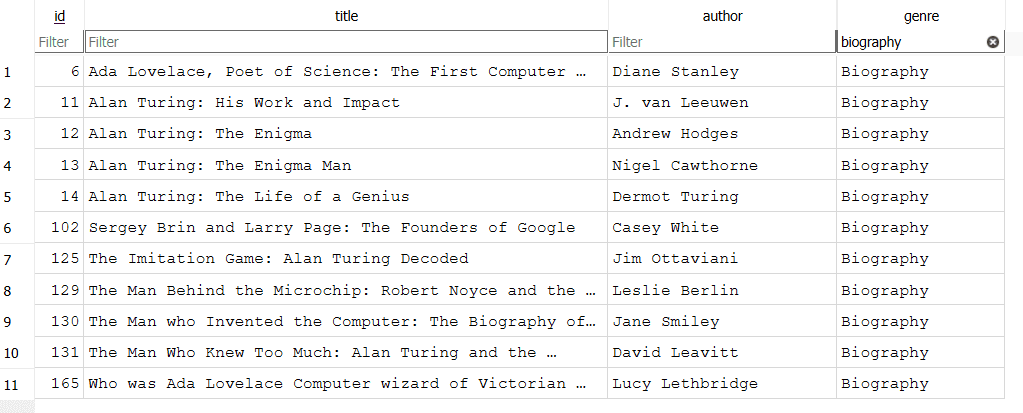
DB Browser also allows you to filter your data, akin to searching for a specific book on your shelf. To filter your data, you can use the search bar at the top of the table view. For instance, to find all books with "the" in the title, simply type "the" into the search bar. DB Browser will quietly update the display, showing only the matching records.
While this graphical approach offers a certain ease, there lies a more powerful method for retrieving data: SQL commands. These commands provide a precise and flexible way to query your database, allowing you to retrieve specific information with surgical precision. We shall explore this intriguing avenue in due course.
For now, familiarise yourself with the subdued elegance of DB Browser's graphical interface.
Task: Filter the Book List
Use the search bar to filter the book list for:
- Titles containing the word "Ada"
- Genres containing the word "biography"
Updating Records
Even in our meticulously organised collections, change is inevitable. In our library analogy, this might involve correcting a book's details, such as its author or genre. DB Browser allows us to modify existing records with ease.
Task: Update a Book Record
To modify a record in your "books" table:
- Go to the "Browse Data" tab.
- Select the "books" table.
- Locate the record and double-click the cell you wish to change.
- Make the necessary adjustments.
- Click "Write Changes" to save your changes.
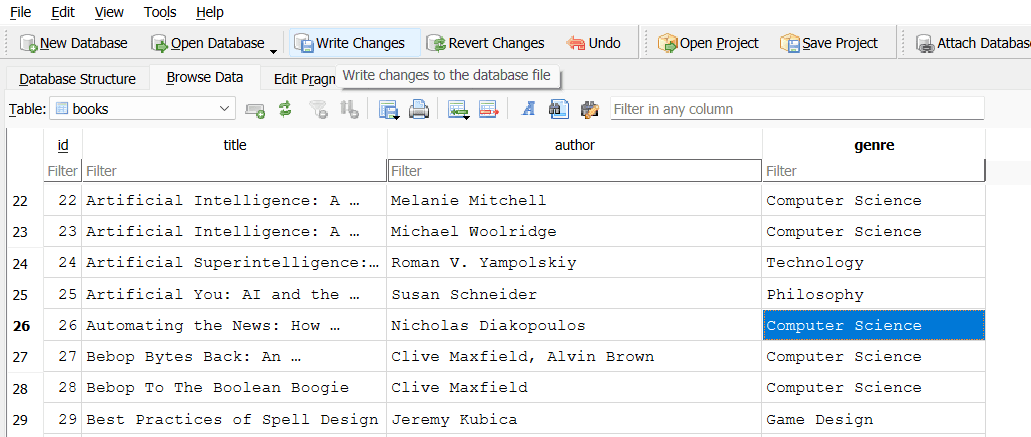
In this example, I've updated the genre of the book to "Computer Science" instead of "Media Studies"
DB Browser facilitates these alterations with quiet efficiency.
Deleting Records
Occasionally, the need arises to remove items from our carefully curated collections. In our library analogy, this might involve discarding a worn-out volume or removing a title that no longer aligns with our interests. DB Browser provides a straightforward means to delete records from your database.
Task: Delete a Book Record
- Go to the "Browse Data" tab.
- Select the "books" table.
- Locate the record you wish to remove and click on the row number to select it.
- Click the "Delete Record" button.
- Confirm the deletion.
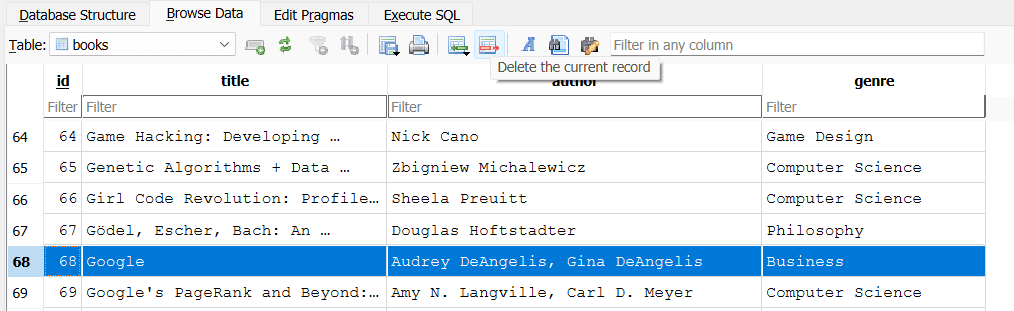
DB Browser executes this task with its characteristic quiet efficiency, leaving no trace of the departed record.
Lesson Summary
In this lesson, we've embarked on our journey into the world of SQLite and DB Browser. We've learned how to create a new database, define tables, and interact with our data using CRUD operations.
Venturing Beyond the Graphical Interface
Having explored the subdued comforts of DB Browser's graphical interface, it's time to consider the broader landscape of SQLite interaction. While DB Browser provides an approachable entry point, the true power of SQLite lies in its command-line interface and its ability to integrate with programming languages like Python.
The Command-Line Interface and SQL
Beneath the unassuming exterior of DB Browser lies the command-line interface, where you can interact with SQLite using SQL commands. These commands offer a precise and flexible way to manipulate your database, allowing for more complex operations and fine-grained control over your data. For instance, you can use SQL commands to:
- Retrieve specific records based on complex criteria.
- Perform calculations on your data.
- Modify multiple records with a single command.
- And much more.
While the command-line interface may seem austere at first glance, it offers a deeper level of engagement with SQLite, allowing you to harness its full potential.