Enhance Your Next.js App Router Project with Google Webfonts Integrated Through Tailwind CSS
I’ve finally managed to add the Sono webfont to my Next.js project and now I feel epic

While it may not be as thrilling as server-side rendering or automatic code splitting, incorporating a webfont marks a noteworthy milestone in any project’s progression.
Transition to app based routing and layout components
I had just familiarised myself with configuring the _document.js file in a previous web app that utilised the Pages router when I realised that the App-based router is now the modern approach to developing a Next.js web app.
With App-based routing and Tailwind CSS, there are three files that need editing to add a Google Webfont:
Defines CSS custom variables on root elements.
Configures next/font/google and injects class names.
Maps custom font family utilities to CSS variable.
Setting a font site wide
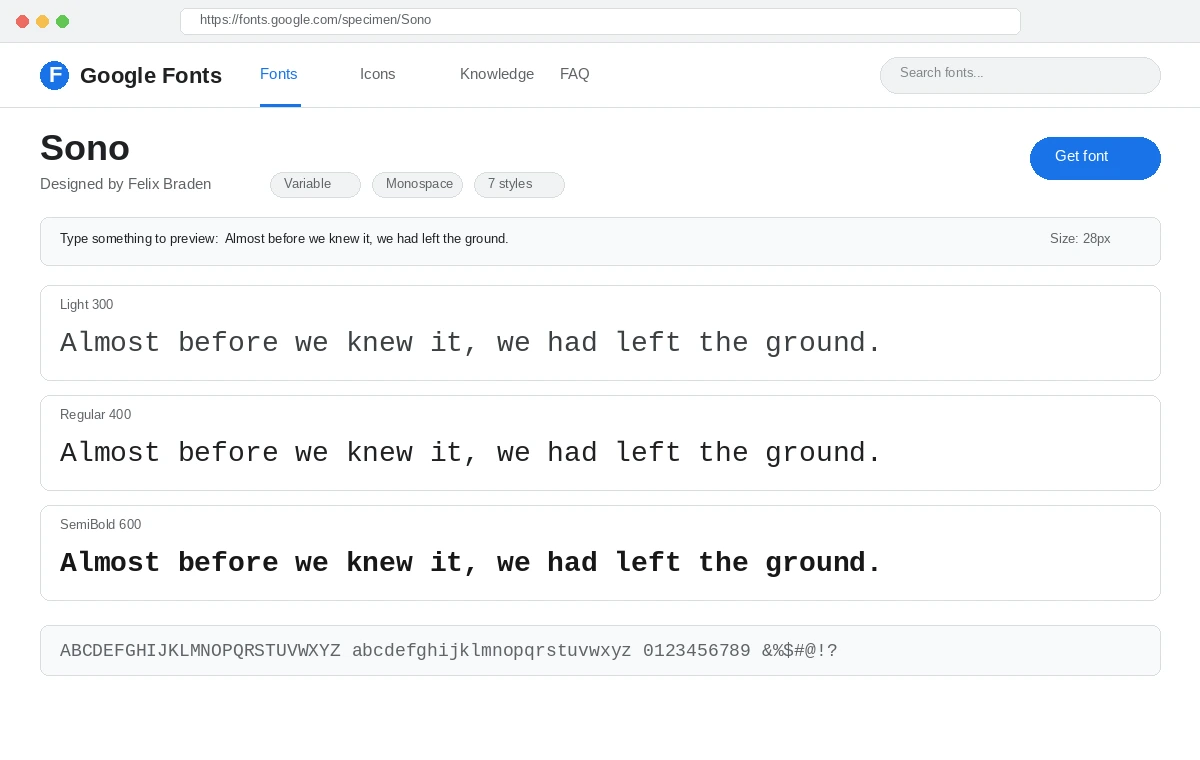
I chose the monotype font Sono for my default site-wide font.
1. global.css
The global.css file at the root of the app directory is where CSS variables are set which can be referenced later in code. Other tags such as headings etc. can have additional fonts set in the same way.
1@tailwind base;2@tailwind components;3@tailwind utilities;4
5html {6  font-family: var(--font-sono);7}
2. layout.js
The layout.js (also at the root of the app directory) sets site-wide rules for font and other document setup.
1import "./globals.css";2import { Sono } from "next/font/google";3
4export const metadata = {5  title: "Title page goes here",6  description: "Meta description goes here",7};8
9const sono = Sono({10  subsets: ["latin"],11  display: "swap",12  variable: "--font-sono",13});14
15export default function RootLayout({ children }) {16  return (17    <html lang="en" className={`${sono.variable}`}>18      <body>{children}</body>19    </html>20  );21}
3. tailwind.config.js
The CSS variable is added to Tailwind by editing the tailwind.config.js in the following way:
1/** @type {import('tailwindcss').Config} */2module.exports = {3 content: [4 "./pages/**/*.{js,ts,jsx,tsx,mdx}",5 "./components/**/*.{js,ts,jsx,tsx,mdx}",6 "./app/**/*.{js,ts,jsx,tsx,mdx}",7 ],8 theme: {9 extend: {10 fontFamily: {11 mono: ["var(--font-sono)"],12 },13 },14 },15 plugins: [],16};Zero External Network Requests & Built-in Privacy
“Fonts are included in the deployment and served from the same domain as your deployment. No requests are sent to Google by the browser.”
— Next.js Official Font Optimization Documentation
That’s it. You don’t need to use any of the boilerplate @import url("https://...") links found on Google Webfonts that you normally have to paste into the head of a webpage.
The official documentation goes into great depth about ways to install fonts, including adding multiple fonts, but if you have followed this guide you have the barebones ready to sprinkle some font magic into your styling.
Next.js Font Optimization Docs
Learn more about variable fonts, font-display, and local fallbacks